Internship Istanbul’s Water Heritage navigating the database
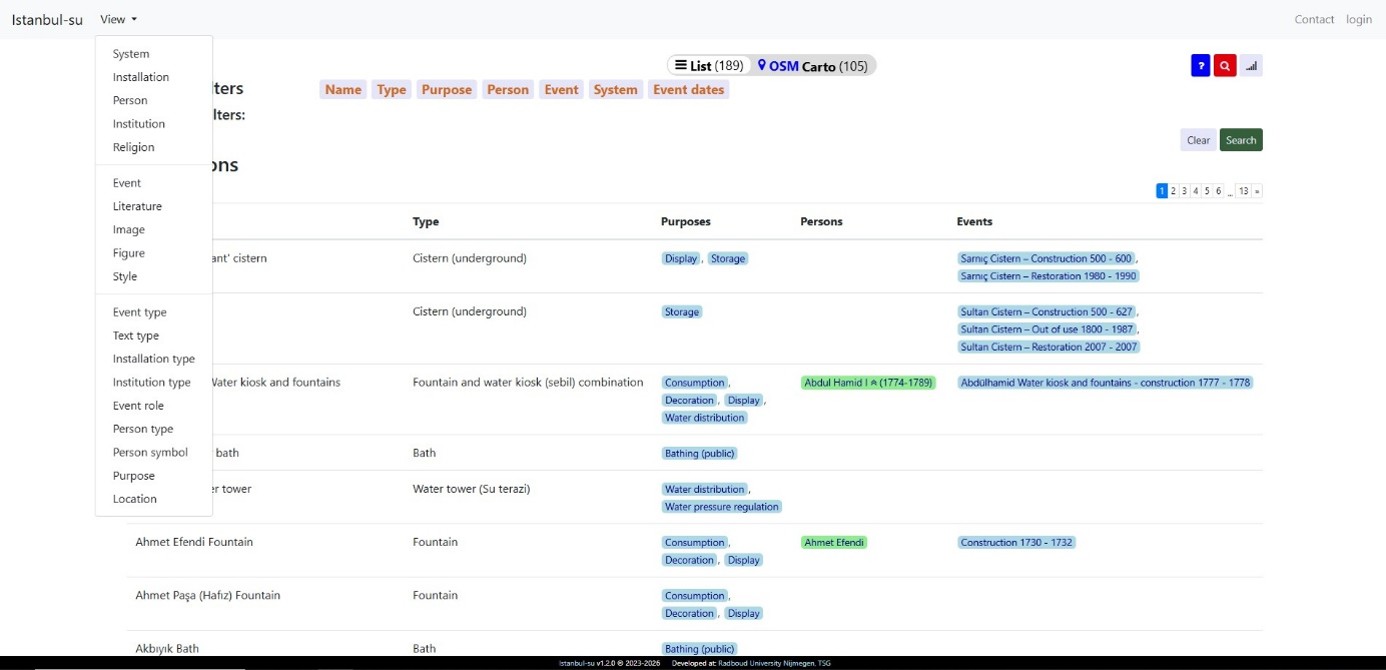
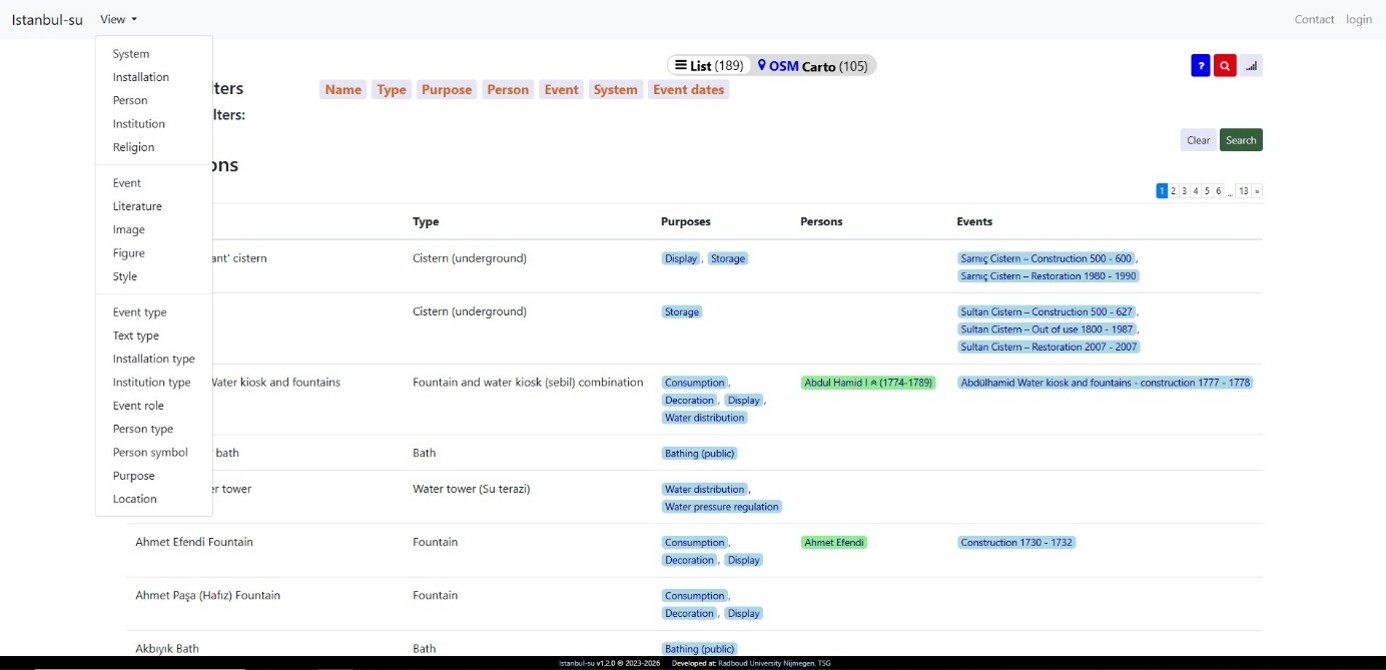
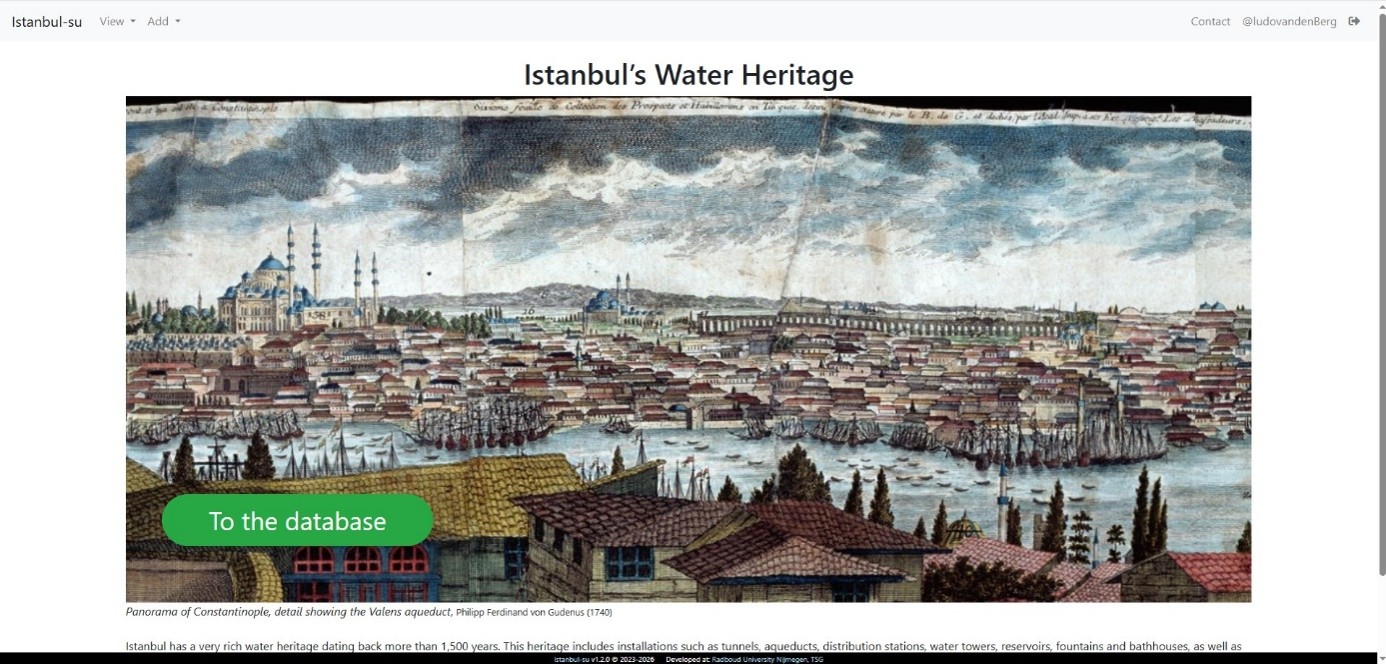 Use either the “To the database” button to directly access the list of installations or use the “view” button in the top left corner to access the dropdown menu to view all separate headings in the database (see below).
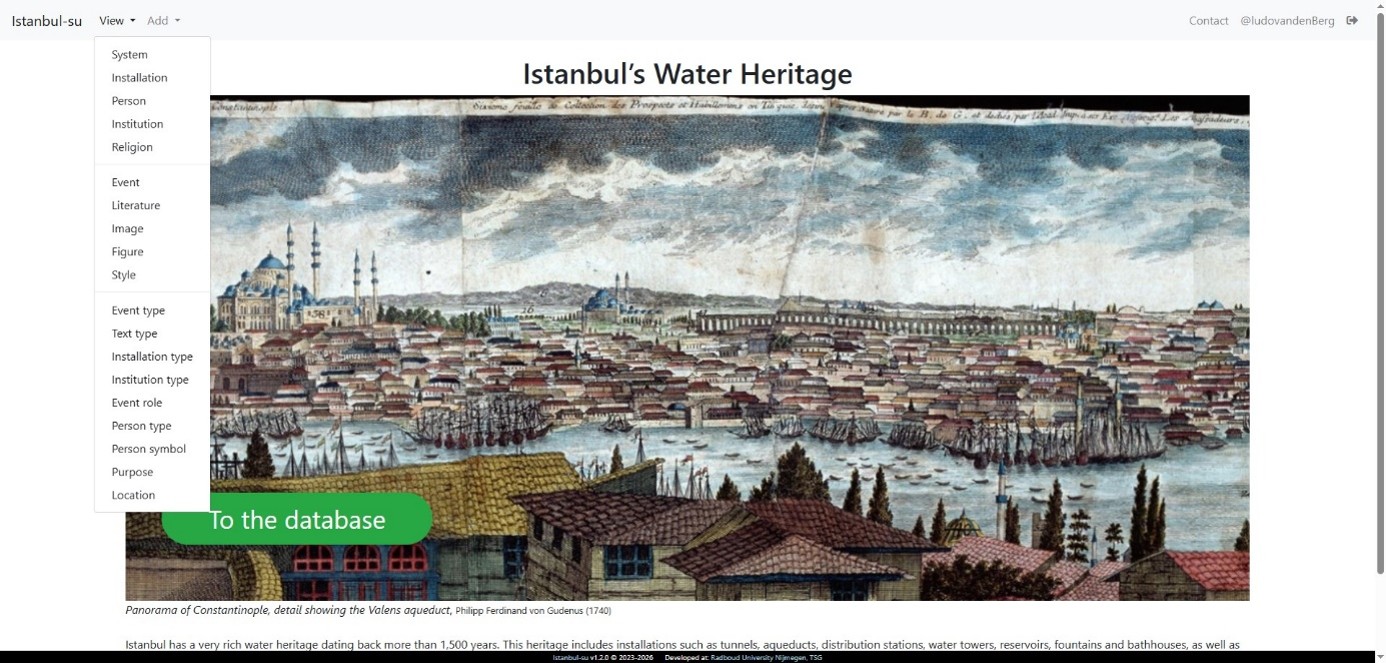 In the view dropdown menu all separate headings can be accessed, the most relevant being “systems”, “installation”, “person”, and “event”.
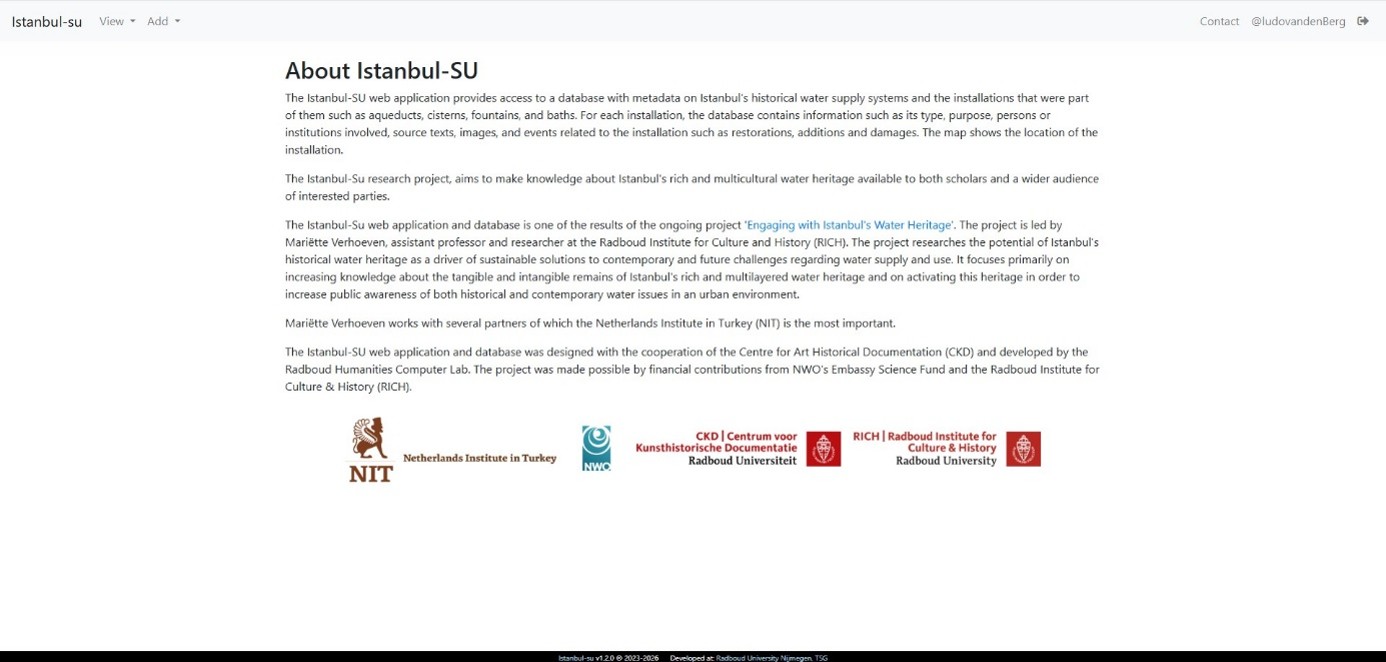
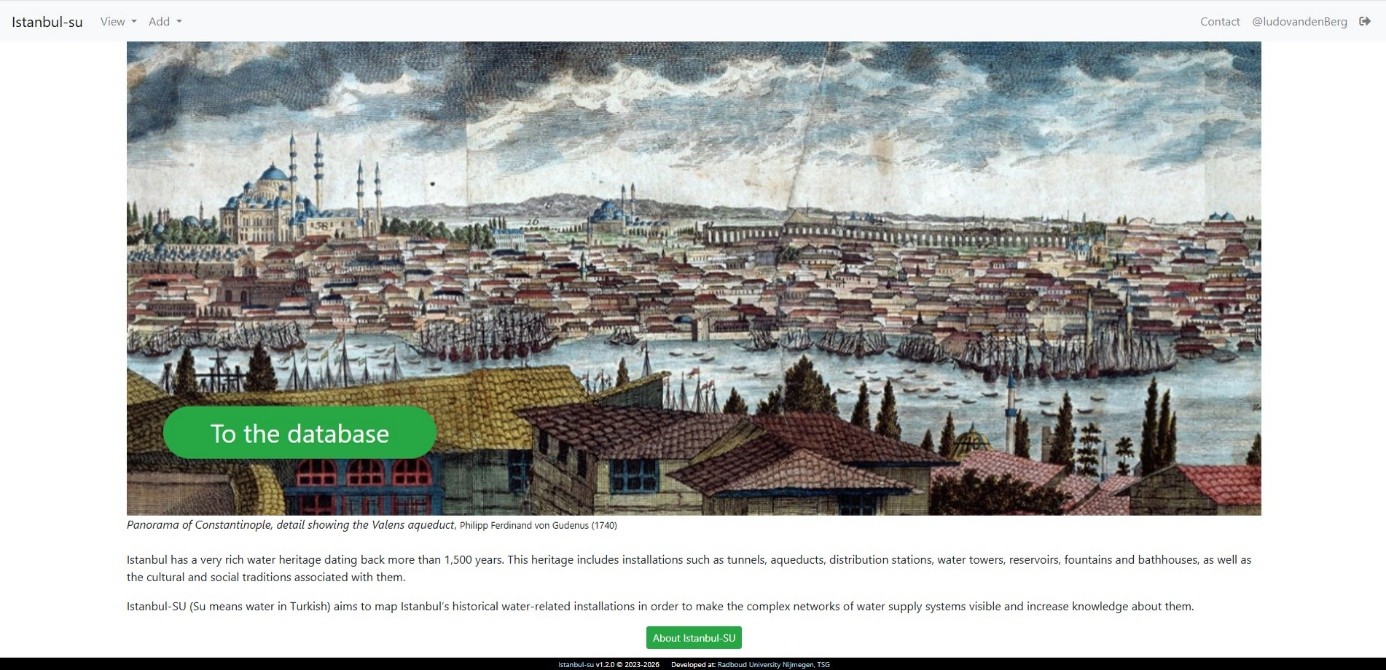 By scrolling down on the homepage of the database you can click on the “About Istanbul SU” button to find out more about the database leading to the following page (see below).
Installations
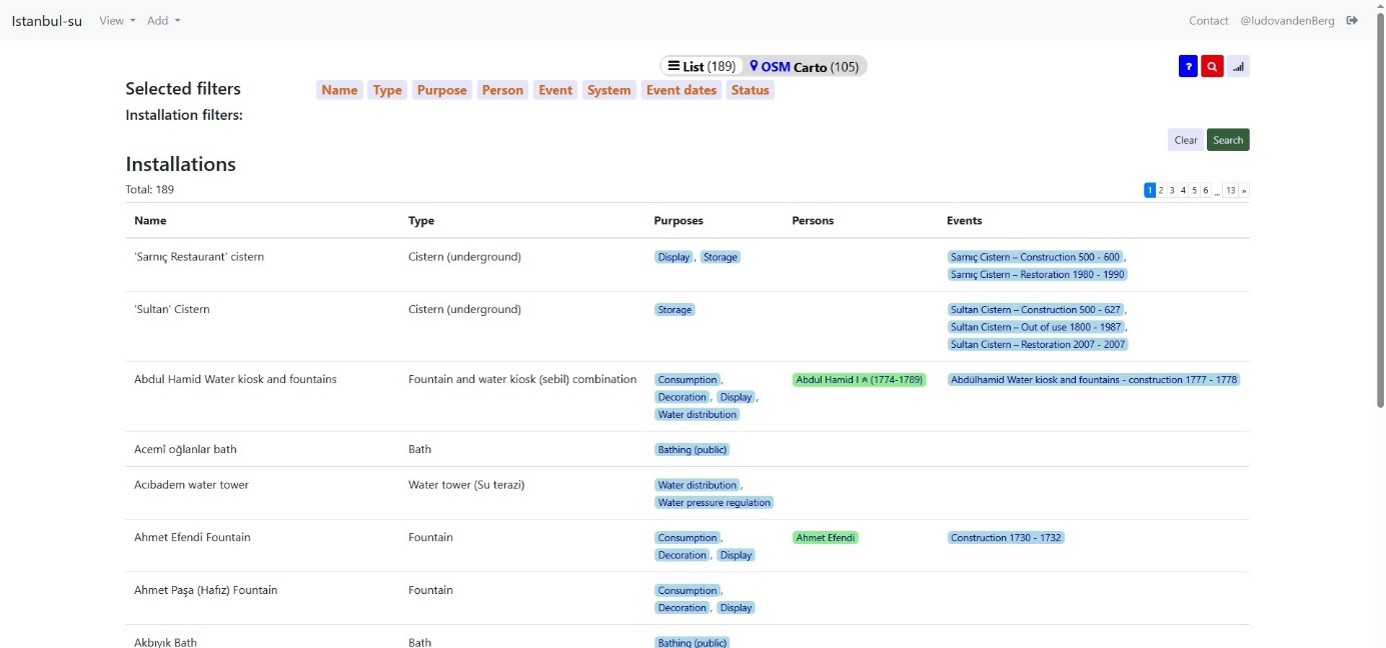 The list of installations is the main way to navigate and search the database. The map of Istanbul can also be accessed through this page through the “OSM Carto” button to view all installations of which the location is known. The list can be flipped through via the numbers below the “clear” and “search” buttons on the right.
Map
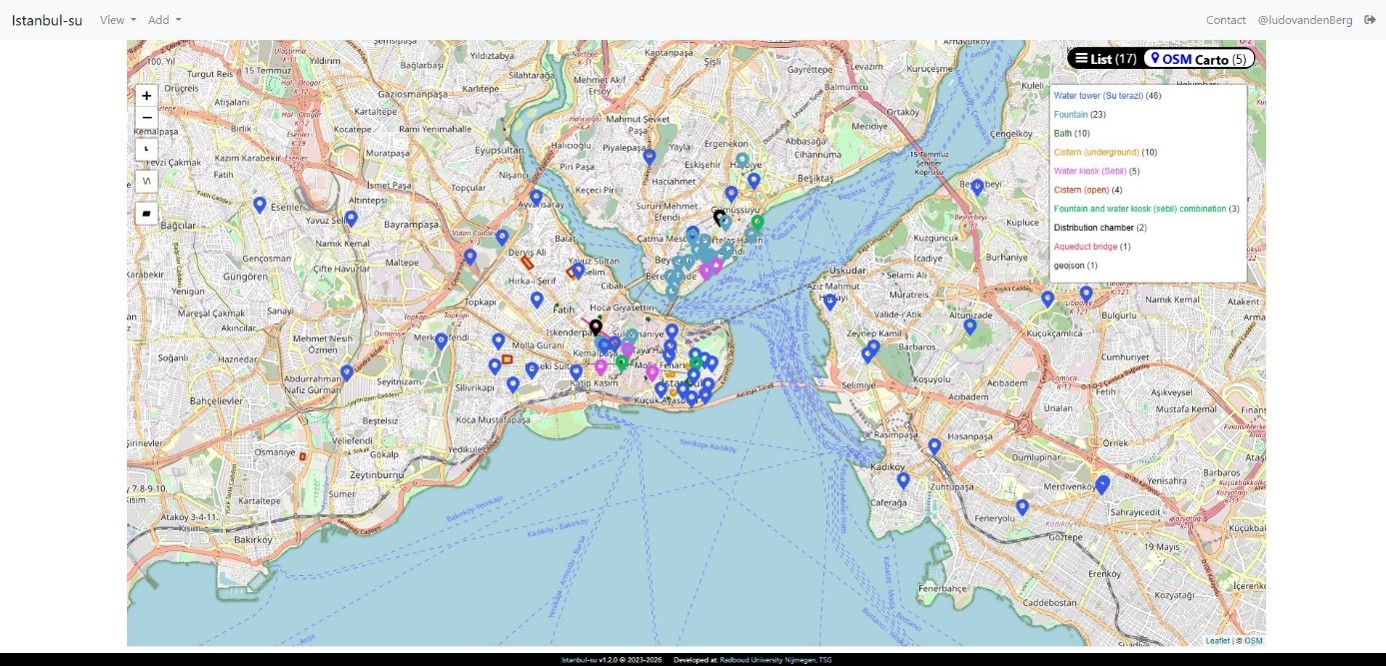
The map can be browsed to find and select the installations of which the location is known. Each colour represents a different installation type which can also be seen on the menu next to the map.
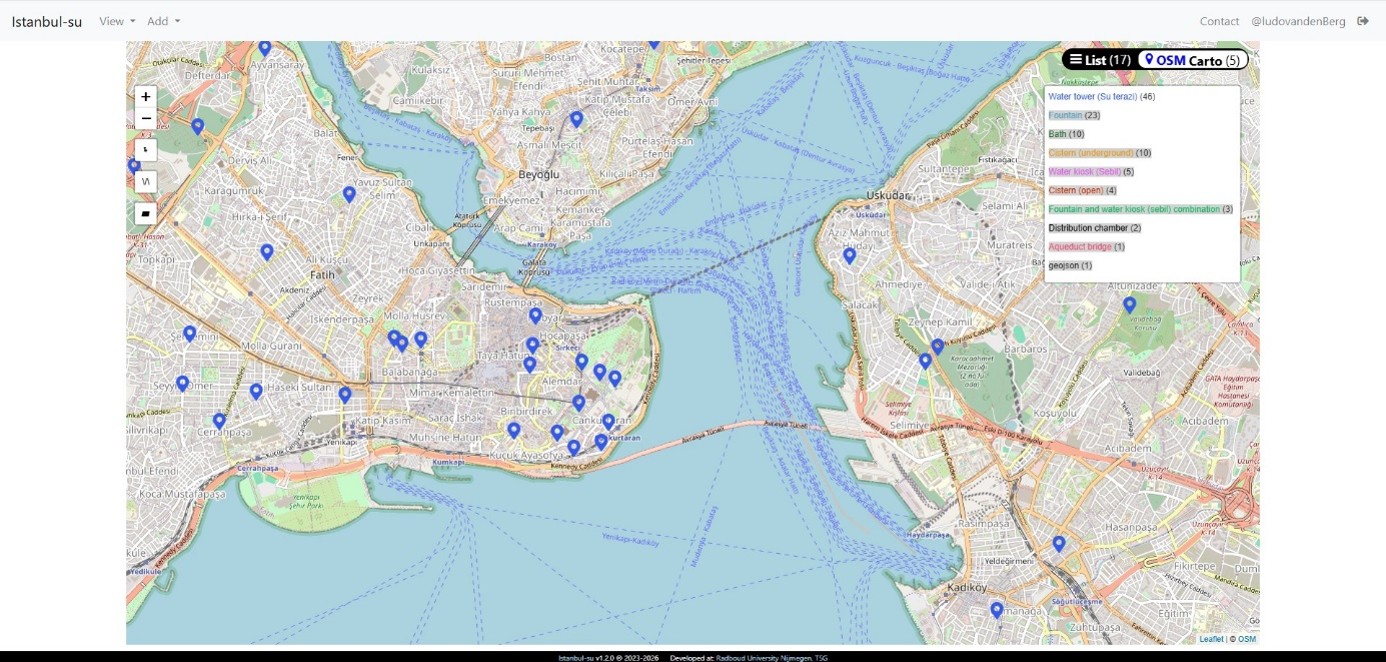 The map can also be filtered by selecting the installation type you want filtered out of the map on the menu next to it. In the image above all installation types except “water tower” have been filtered out of the map. The map can also be indirectly filtered through the list of installations.
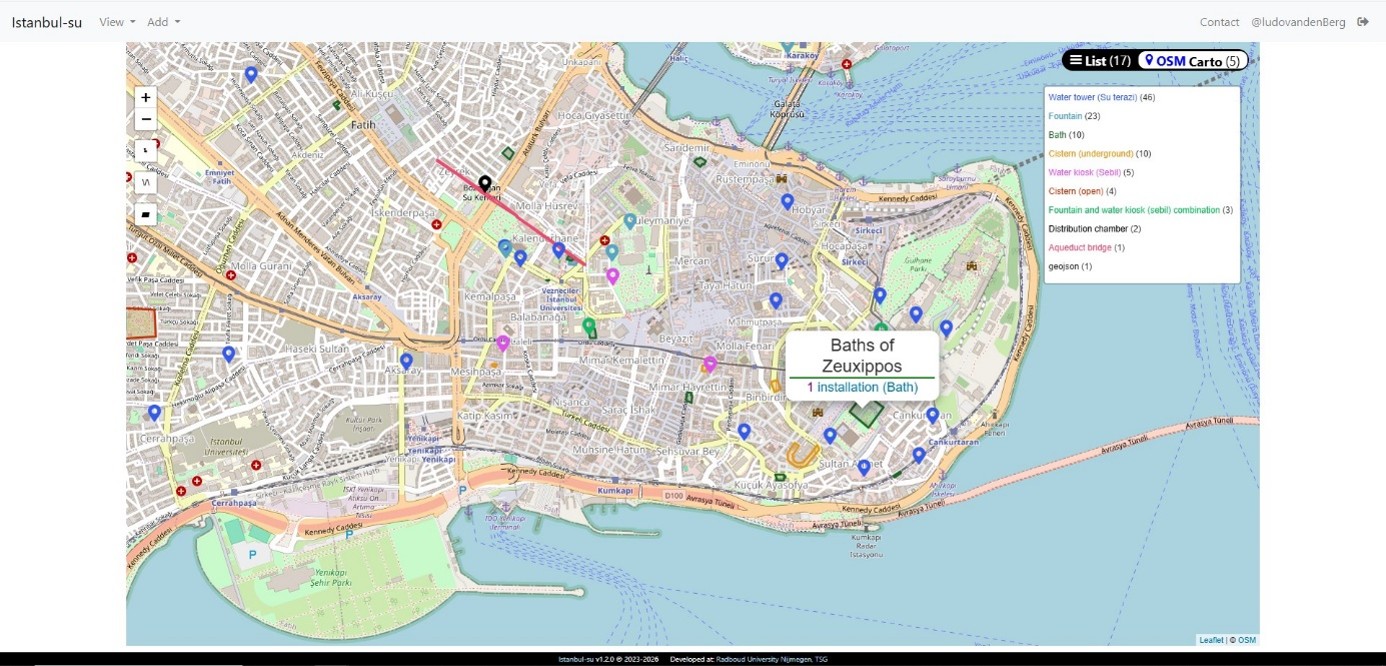
By selecting an icon on the map the name of the installation will pop up with a link to its entry in the database.
Installation list
The list can be filtered on different kinds of information to more easily find specific installations. To filter, please use any of the headings next to selected filters (see below). Multiple filters can be used at the same time.
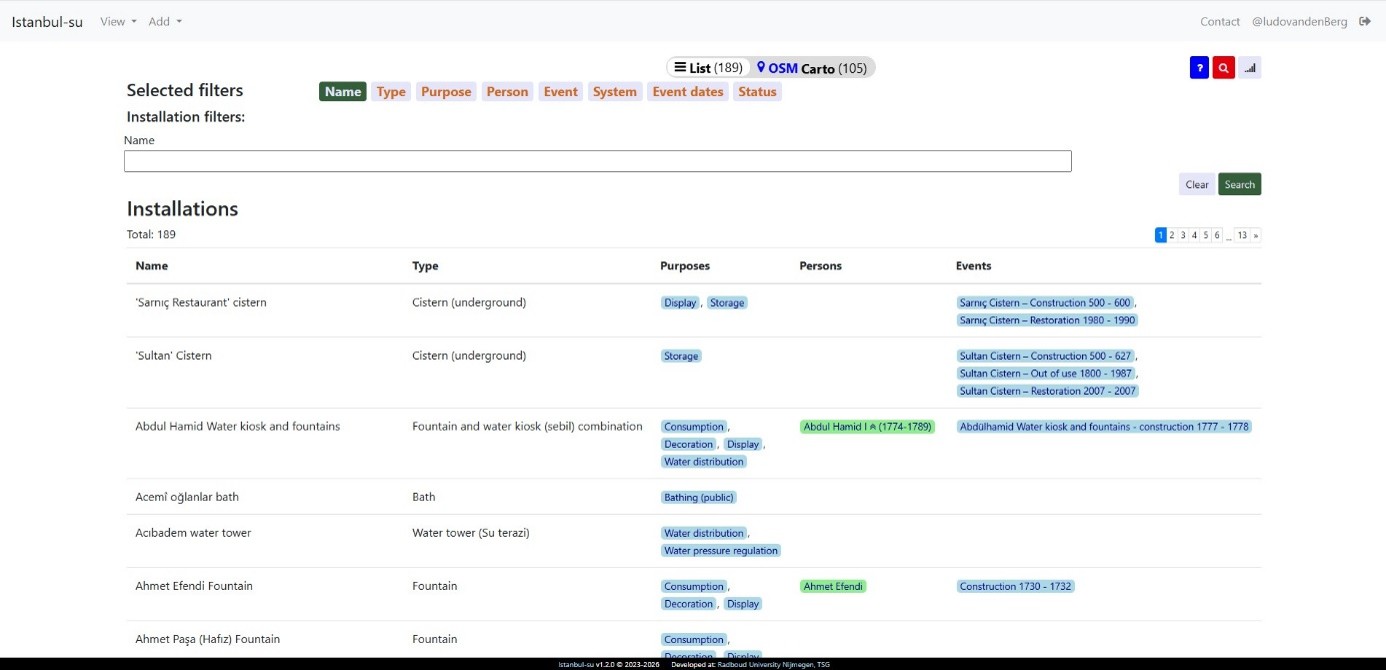
The ‘Name’ filter can be used to find installations based on its name. Either use the dropdown menu to select the desired installation or type the name of the desired installation. Multiple names can be selected at the same time.
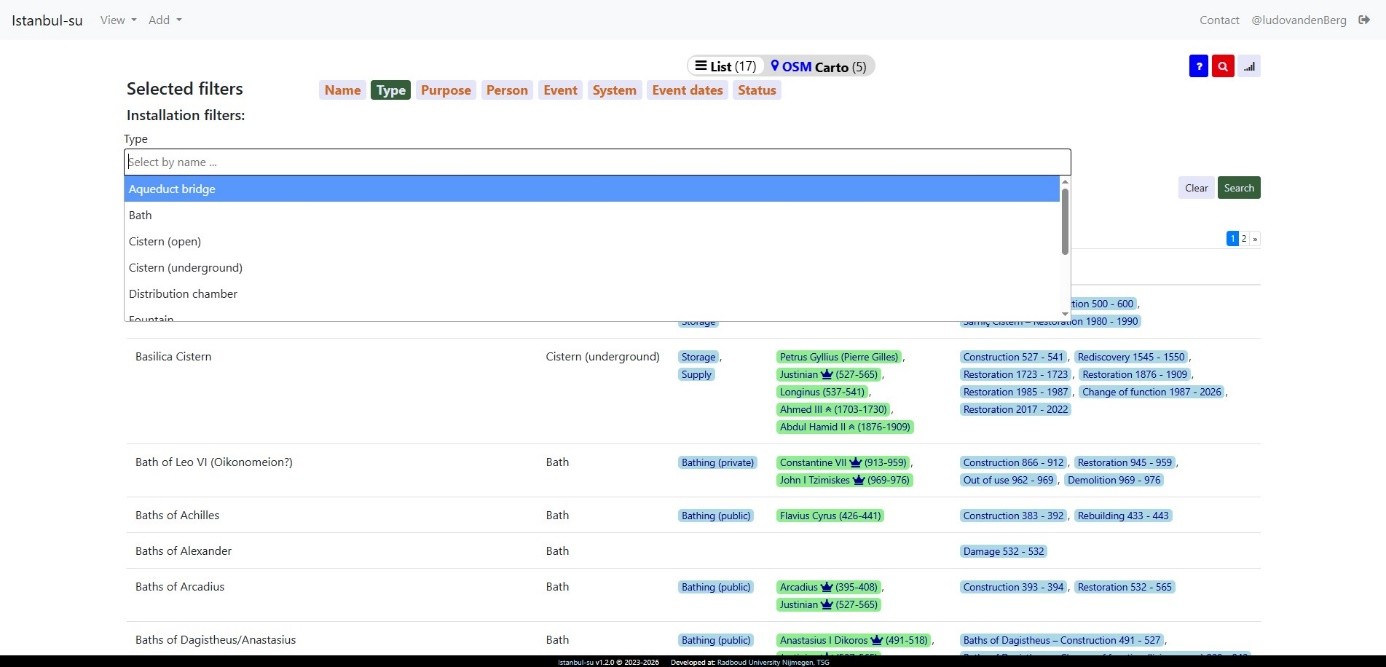 The ‘Type’ filter can be used to filter on the type of installation, such as “bath” or “cistern (underground)” or “cistern (open)”. Either use the dropdown menu to select the desired type or type the name of the desired type. Multiple types can be selected at the same time.
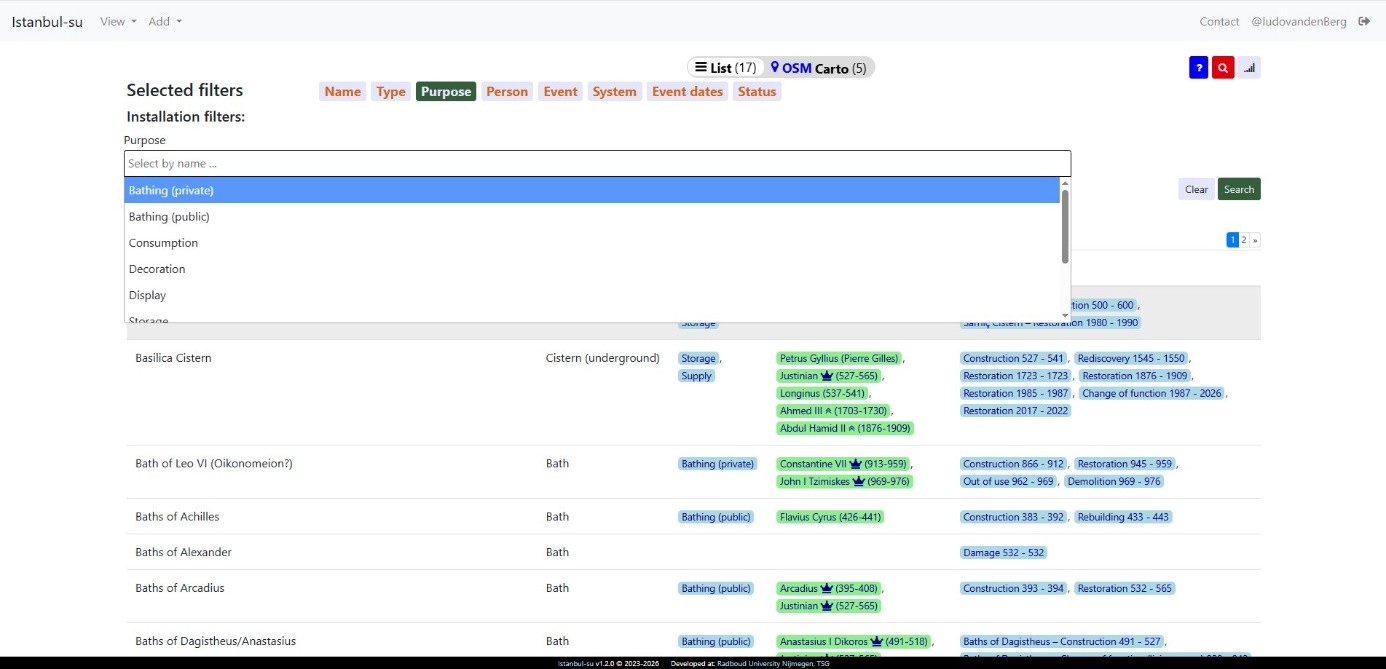 The ‘Purpose’ filter can be used to filter on the purpose of the installation, such as “bathing (public)” or “bathing (private)” or “storage”. Either use the dropdown menu to select the desired purpose or type the name of the desired purpose. Multiple purposes can be selected at the same time.
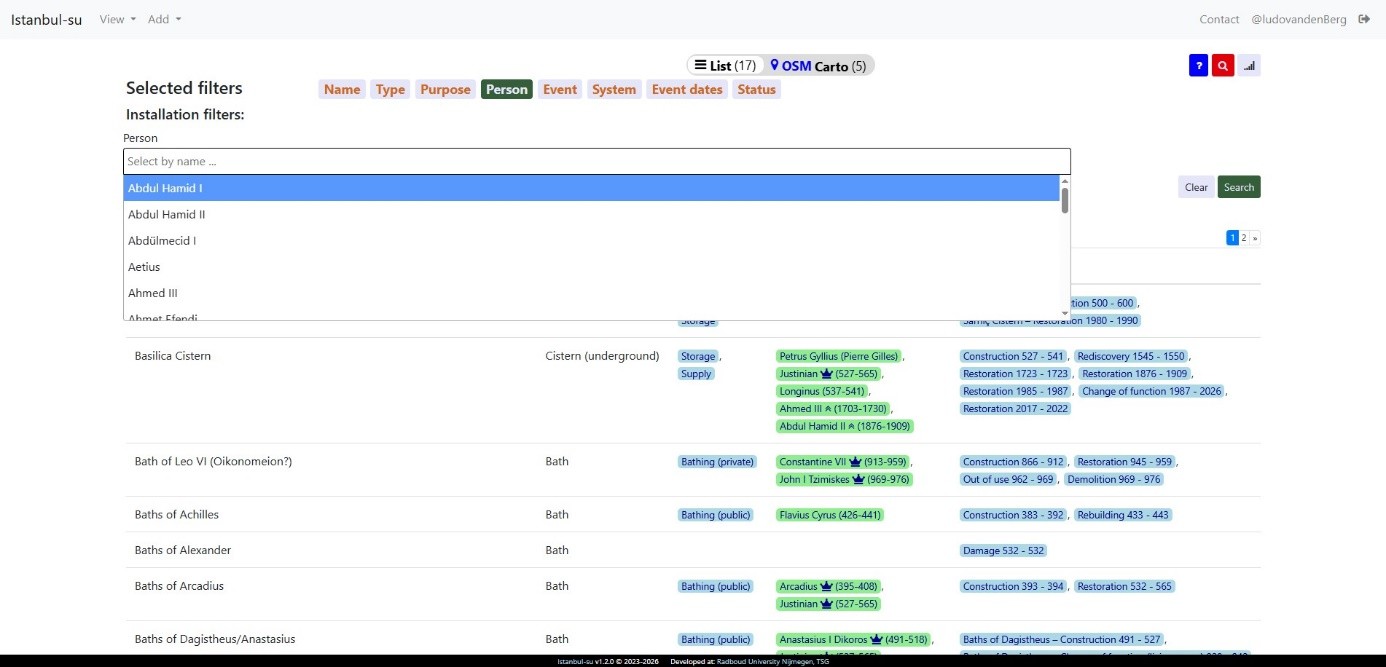 The ‘Person’ filter can be used to filter on specific persons connected to installations such as “Justinian” or “Abdul Hamid I”. Either use the dropdown menu to select the desired person or type the name of the desired person. Multiple persons can be selected at the same time.
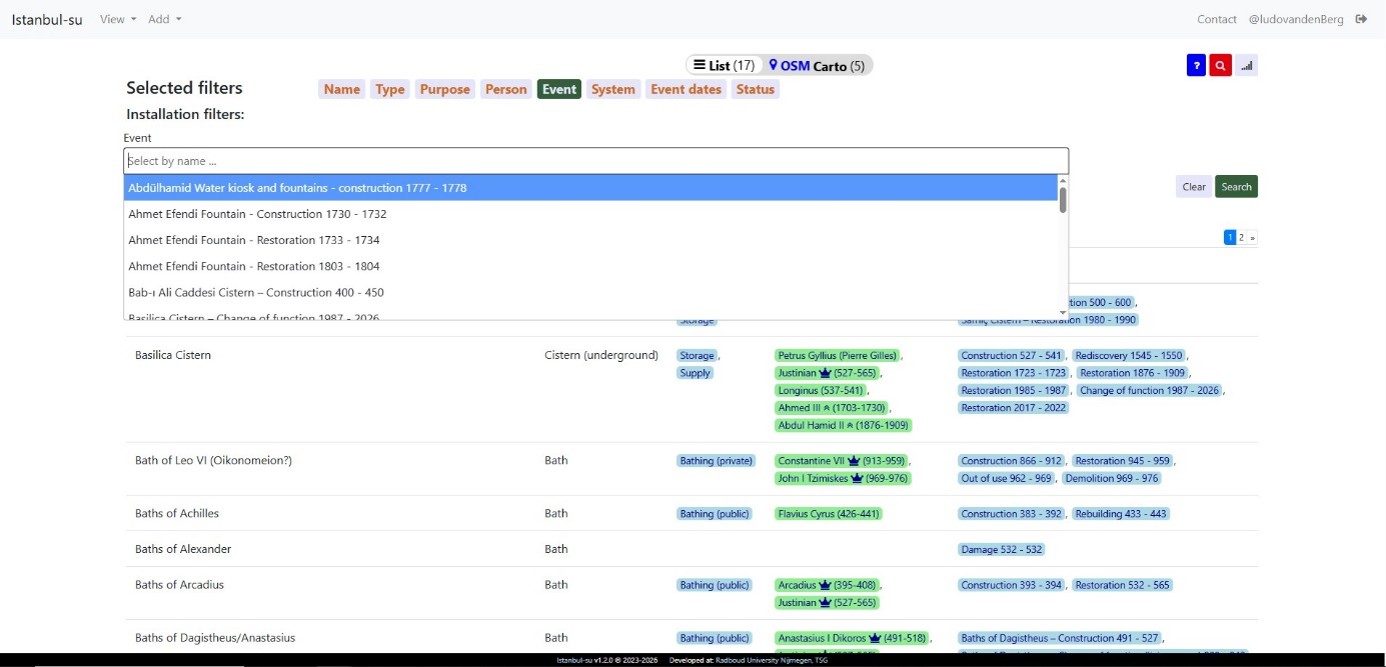 The ‘Event’ filter can be used to filter on specific events (types) such as “construction” or “restoration” or “out of use”. Either use the dropdown menu to select the desired event or type the name of the desired event. Multiple events can be selected at the same time.
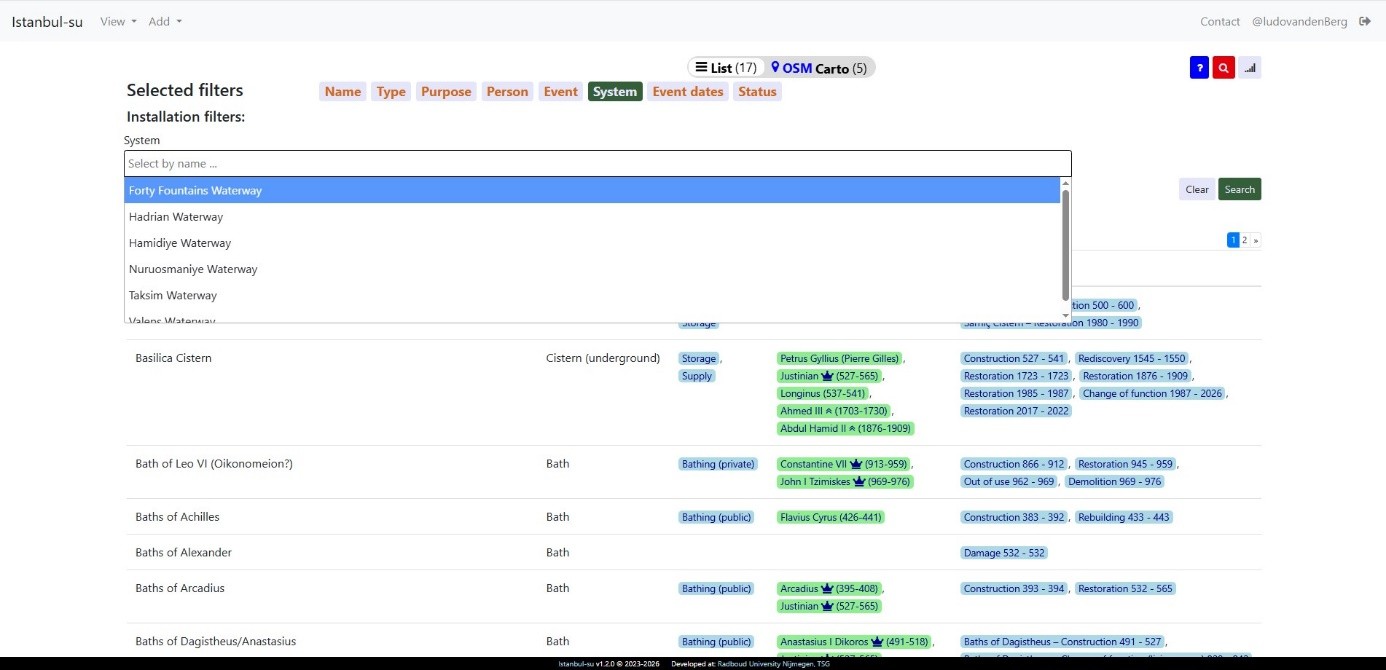 The ‘System’ filter can be used to filter installations linked to a specific system, such as “Valens waterway” or “Taksim waterway”. Use the dropdown menu to select the desired system or type the name of the desired system. Multiple systems can be selected at the same time.
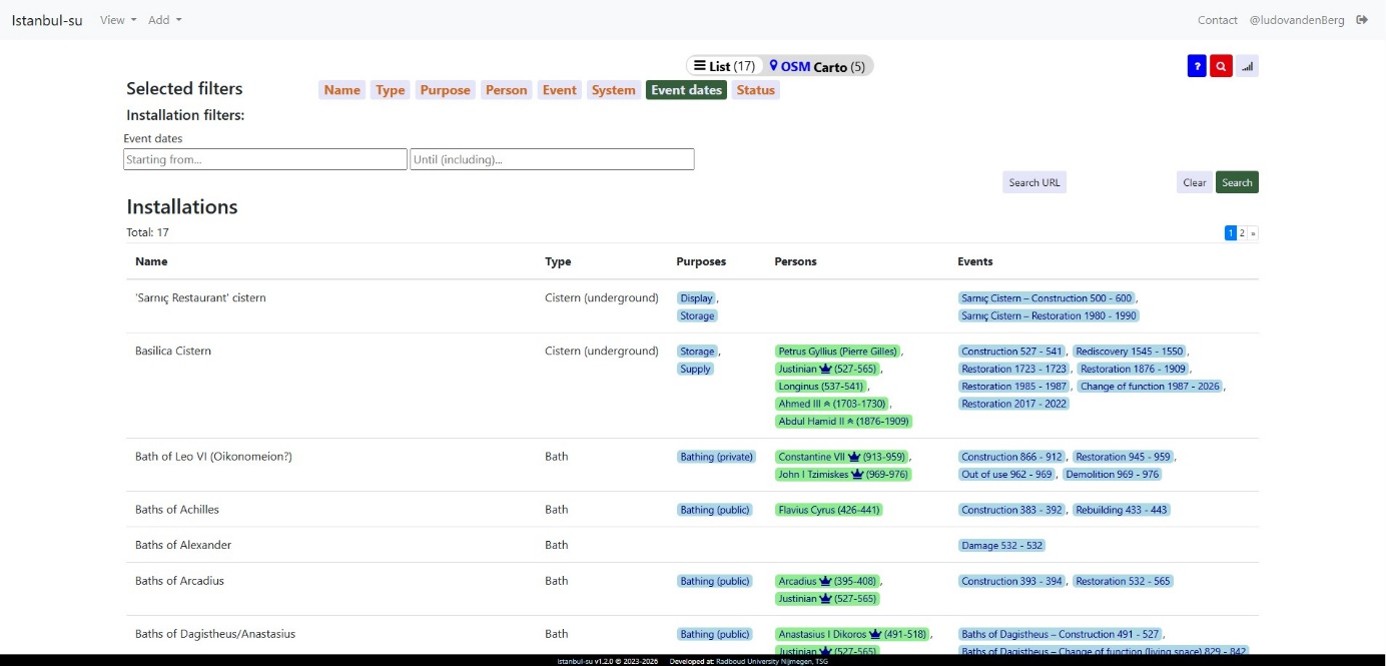 The ‘Event dates’ filter can used to filter on specific event dates of an installation. Fill in a beginning and an end date to filter on a specific time span.
Finally when all desired filters have been filled in, press the green “search” button on the right. See below for an example.
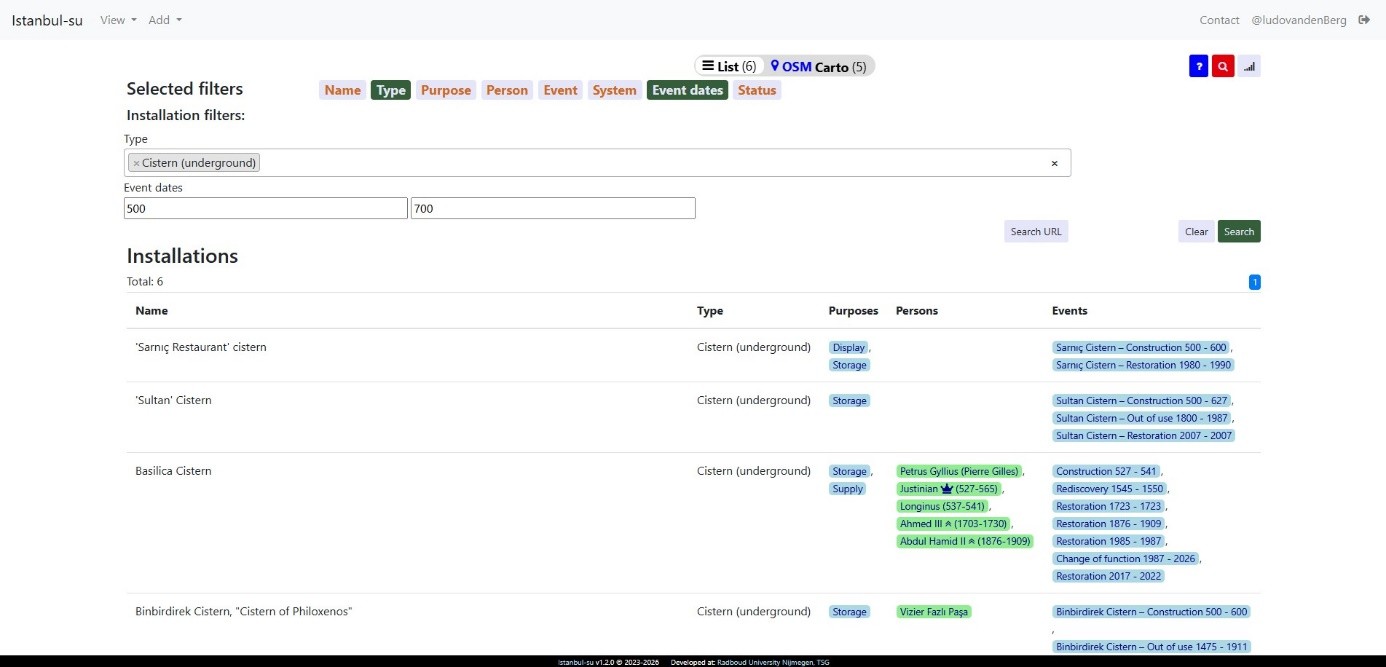
If the filters need to be cleared, press the “clear” button to the left of the “search” button and then press the “search” button again to view the unfiltered list.
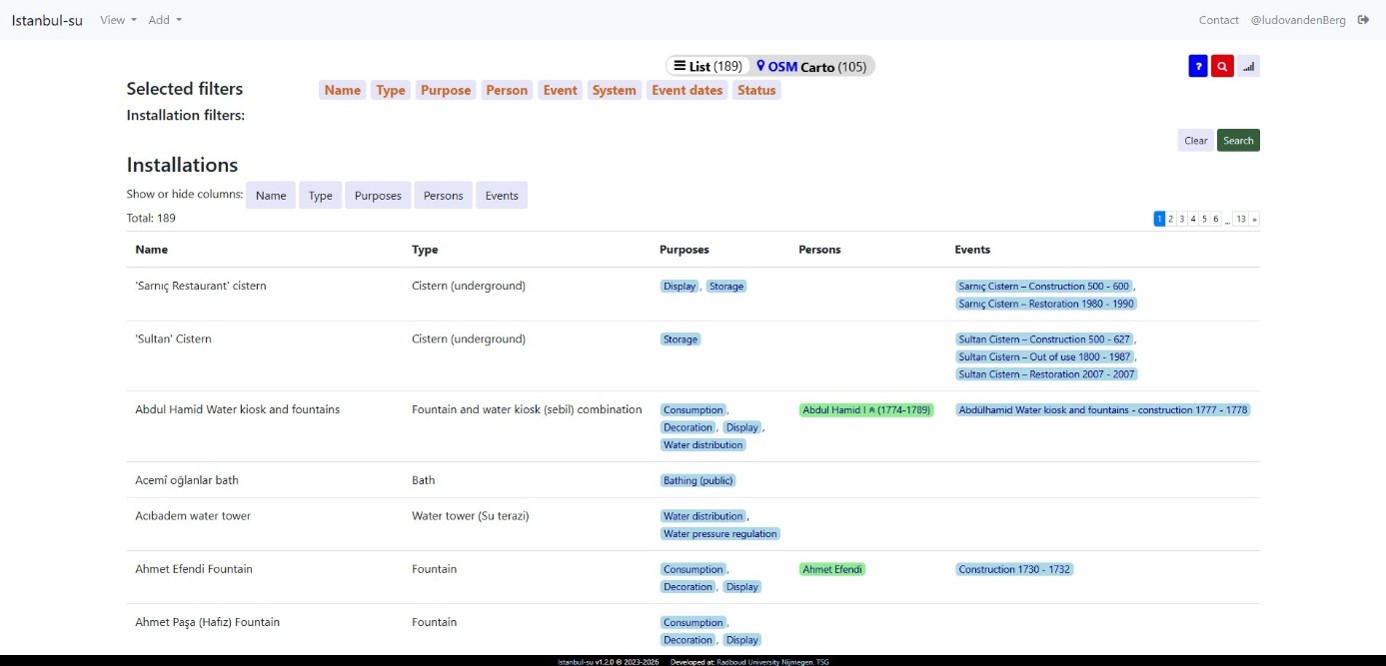
The display of the list of installations can also be altered. This can be done via the graph button in the right-hand corner of the database. By pressing this icon five extra buttons will appear under “Installations” (see above). By pressing any of these buttons will make its corresponding column in the list disappear (see below for an example).
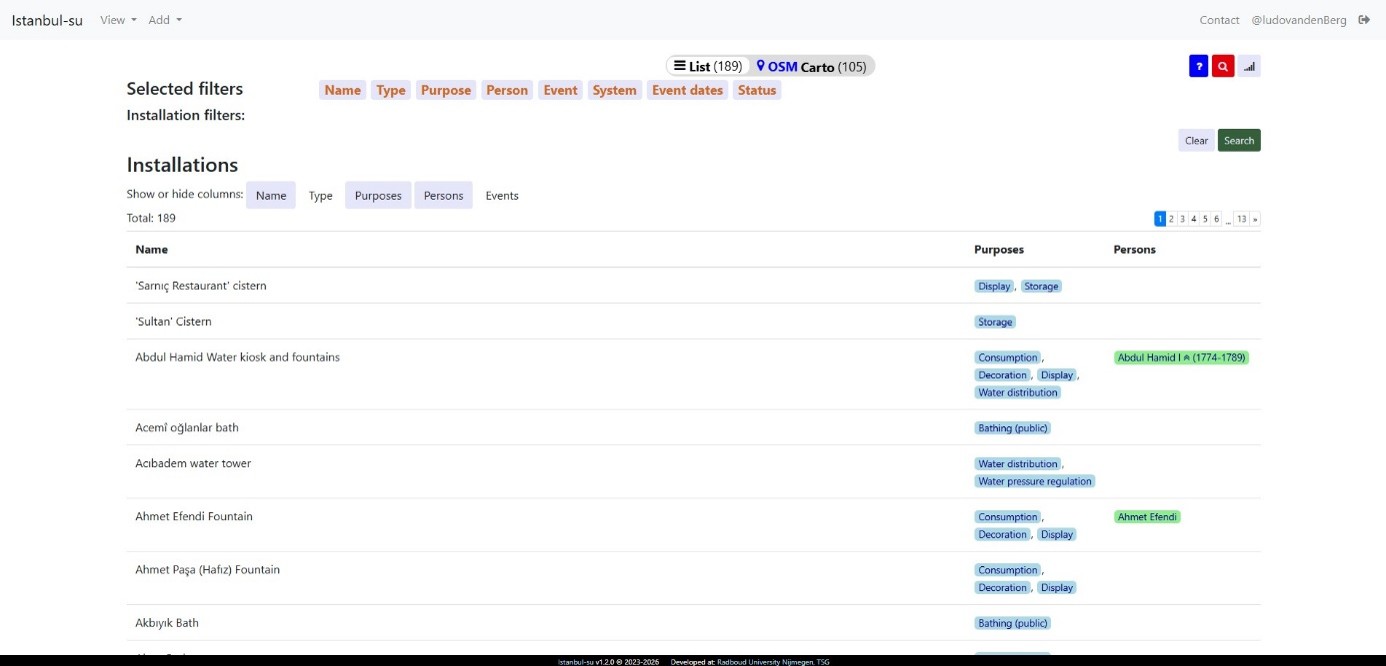
The list of installations can lead to different kinds of information:

Installation details
Press the name of the installation to go to the page about the installation, featuring all relevant (and known) information about the installation (see below).
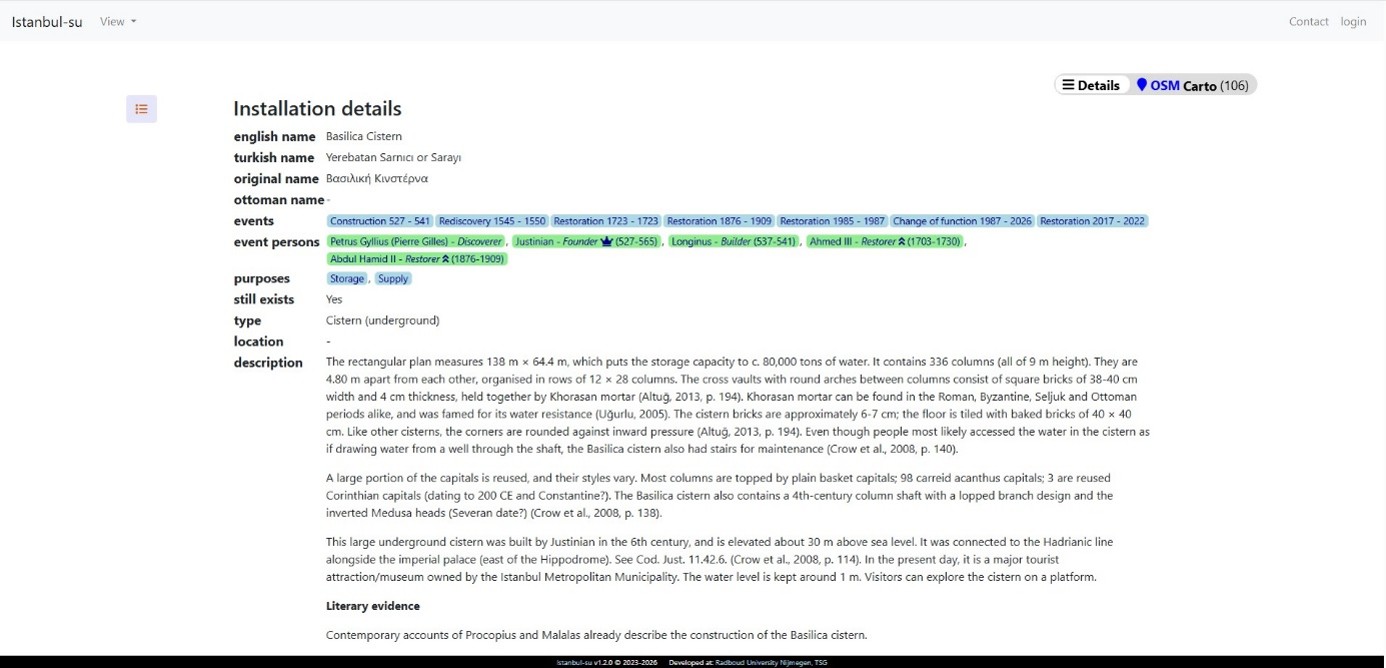
The database is centred around the Installations, which means that all pages are connected to an installation. So, much information can be accessed through the page of an installation. The following information can be accessed through the page: the individual pages of all events connected to the installation, the individual pages of all persons connected to the installation, the list of all installations having the same purpose, and the page of the system to which the installation is linked. Via the page the map showing the location of the installation if it is known can also be accessed. Press on the list icon in the left hand corner to go the list of all installations.
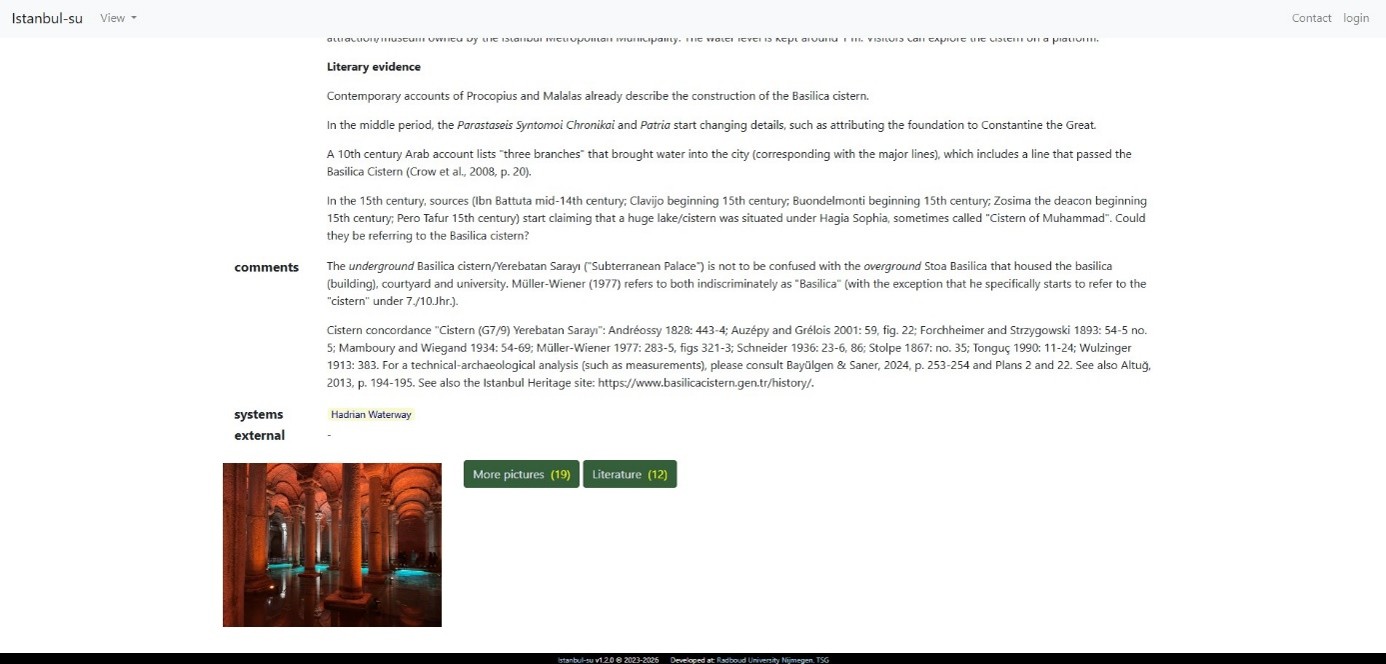
Clicking on the name of the system to which the installation is connected will lead to the following page (see below). Press on the list icon in the left hand corner to go to the list of all systems.
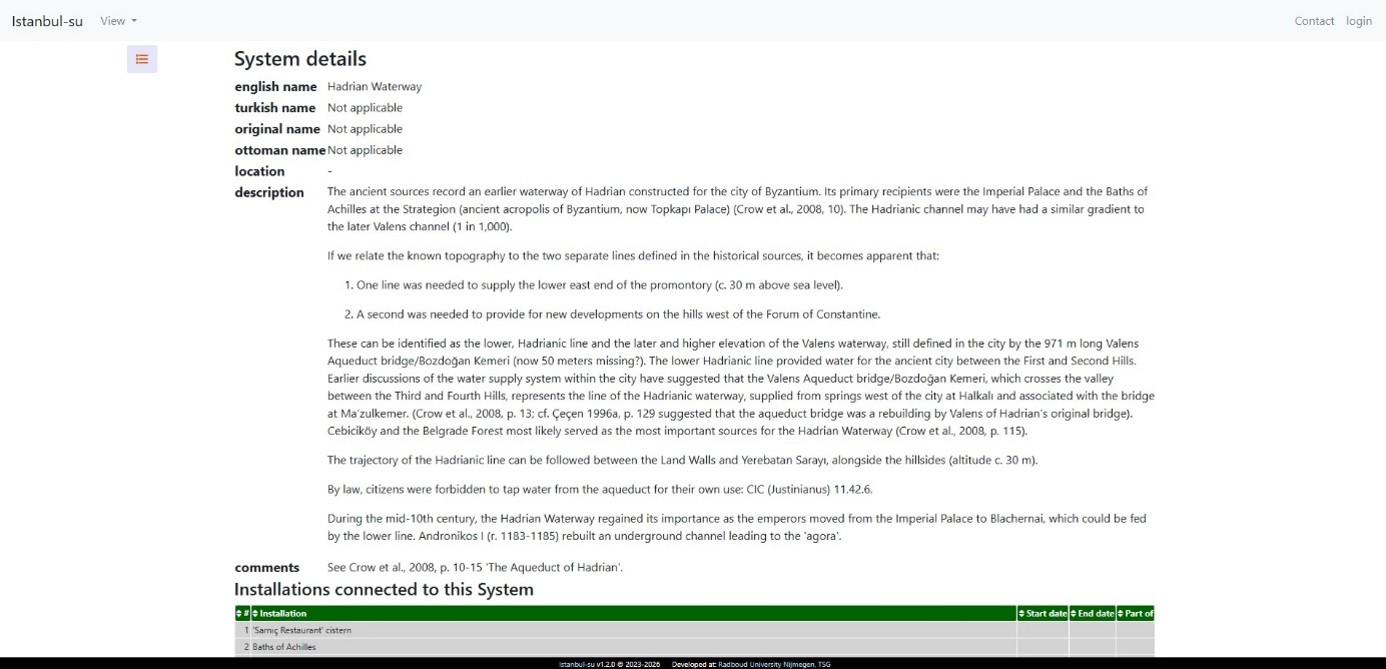
The page features all relevant information about the system as well as a list of all installations connected to the system (see below). Press on the name of an individual installation to go to its entry in the database.
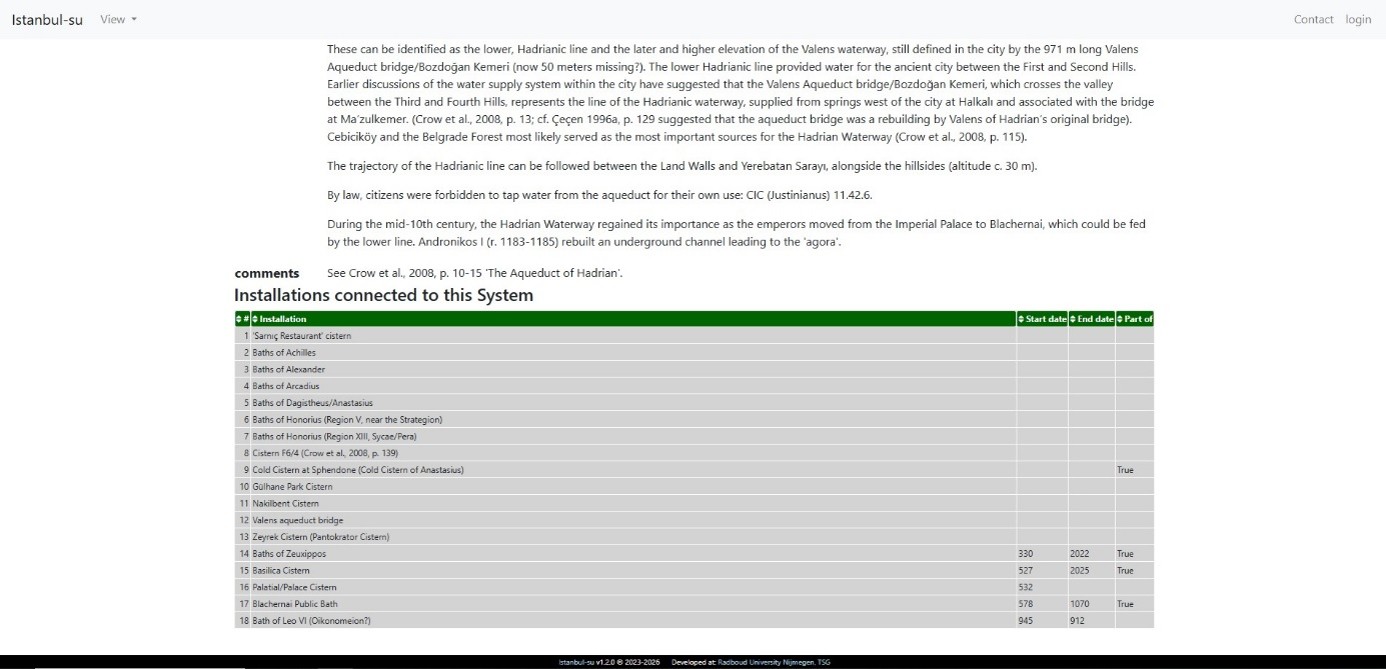
On the bottom of the page you can find a picture of the installation, if available. Pressing the green “more pictures” button will show all pictures related to the installation (see below).
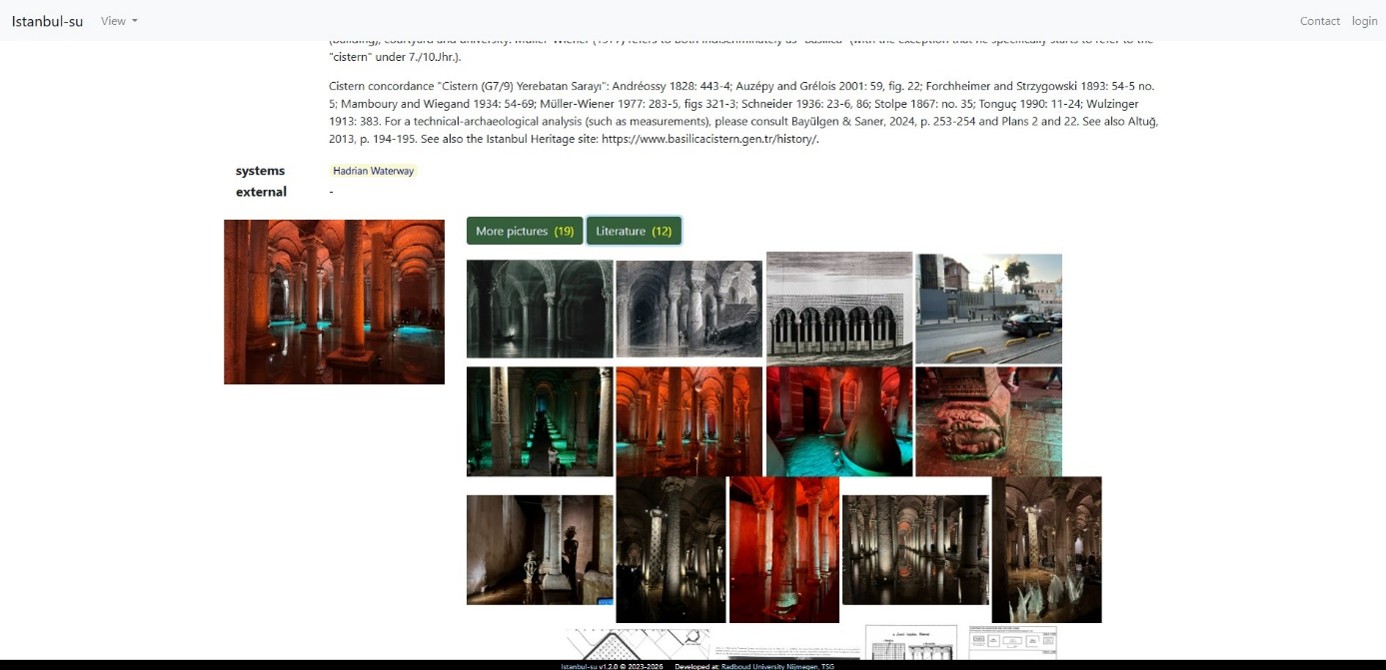
The images can be clicked on to reveal a pop-up featuring a link to the page about the image (see below).
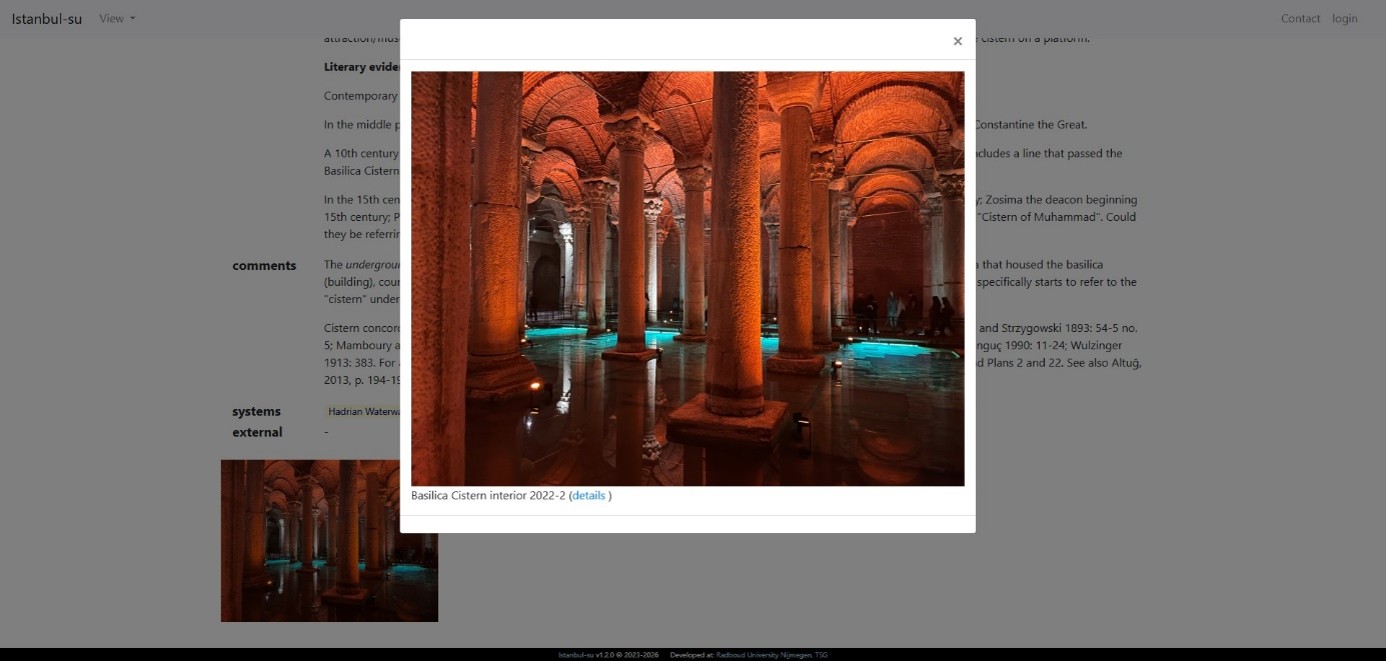
Clicking on the “details” button will lead to the following page (see below).
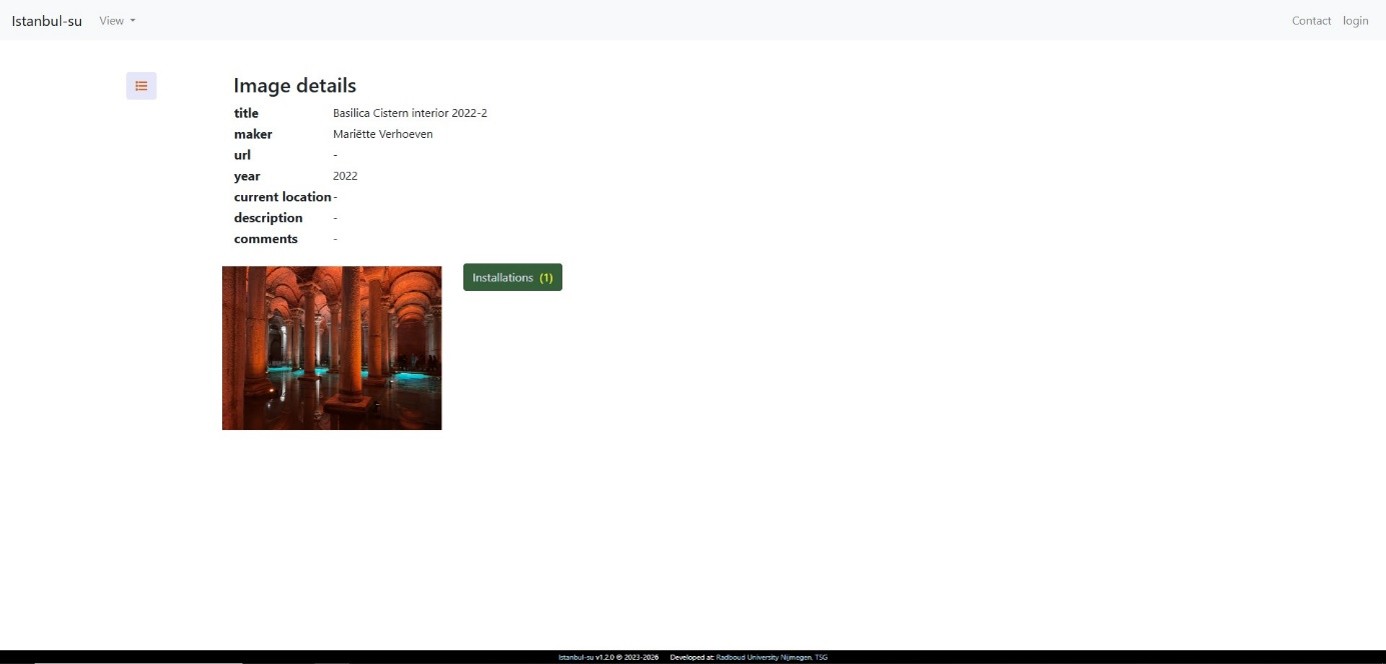
Pressing the green “literature” button will show a list of all literature connected to the installation (see below). Press on the list icon in the left hand corner to go the list of all images.
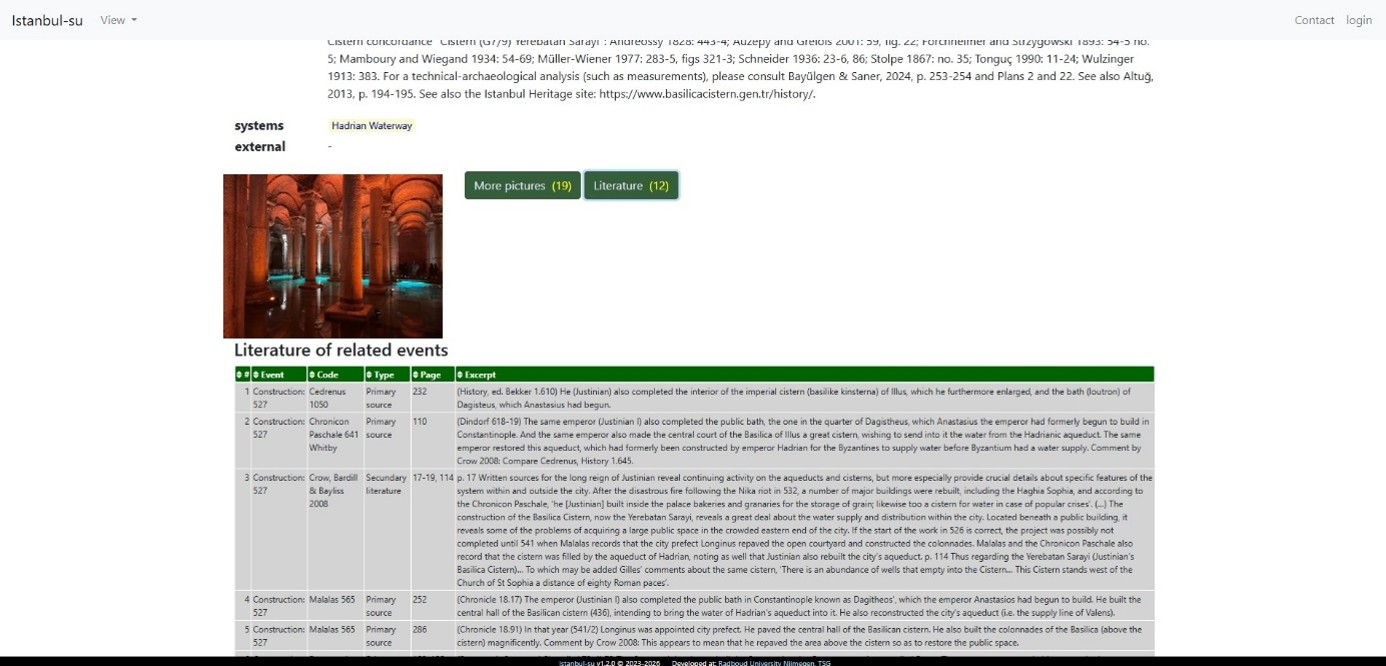
The list features the event connected to the literature, the code of the source, whether it is a primary or secondary source, the page number(s), and an excerpt from the source.
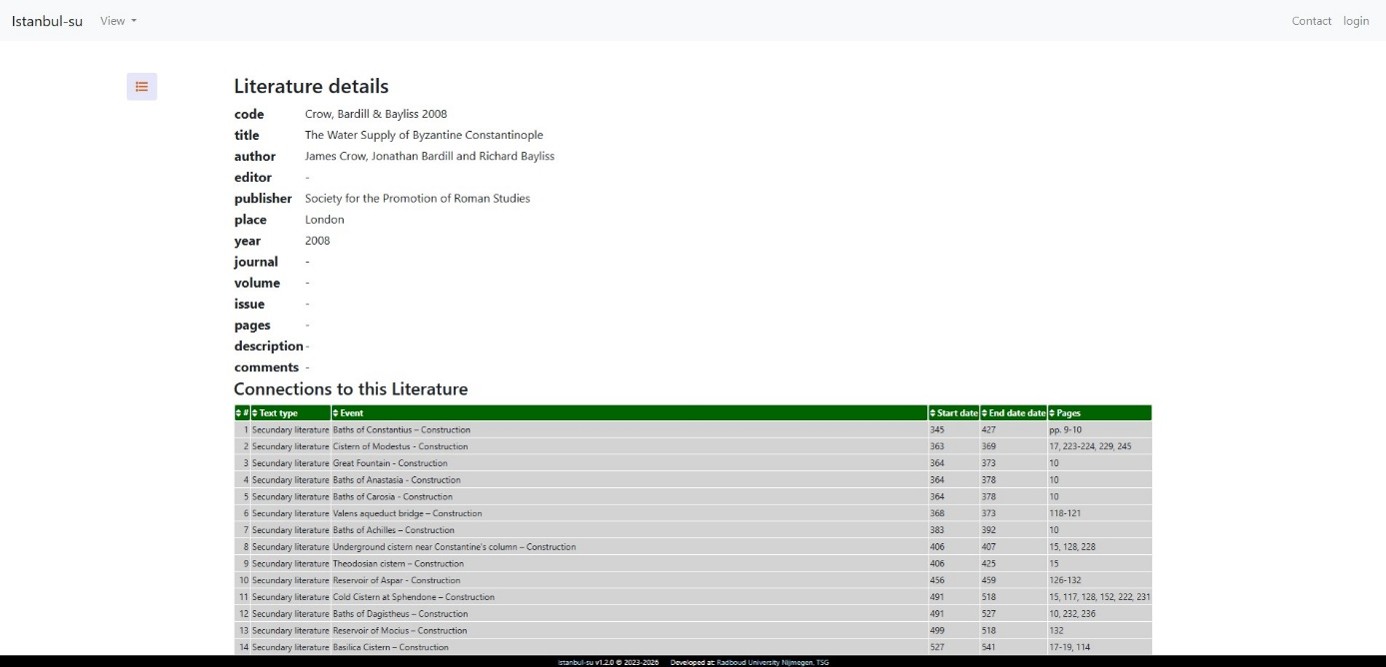
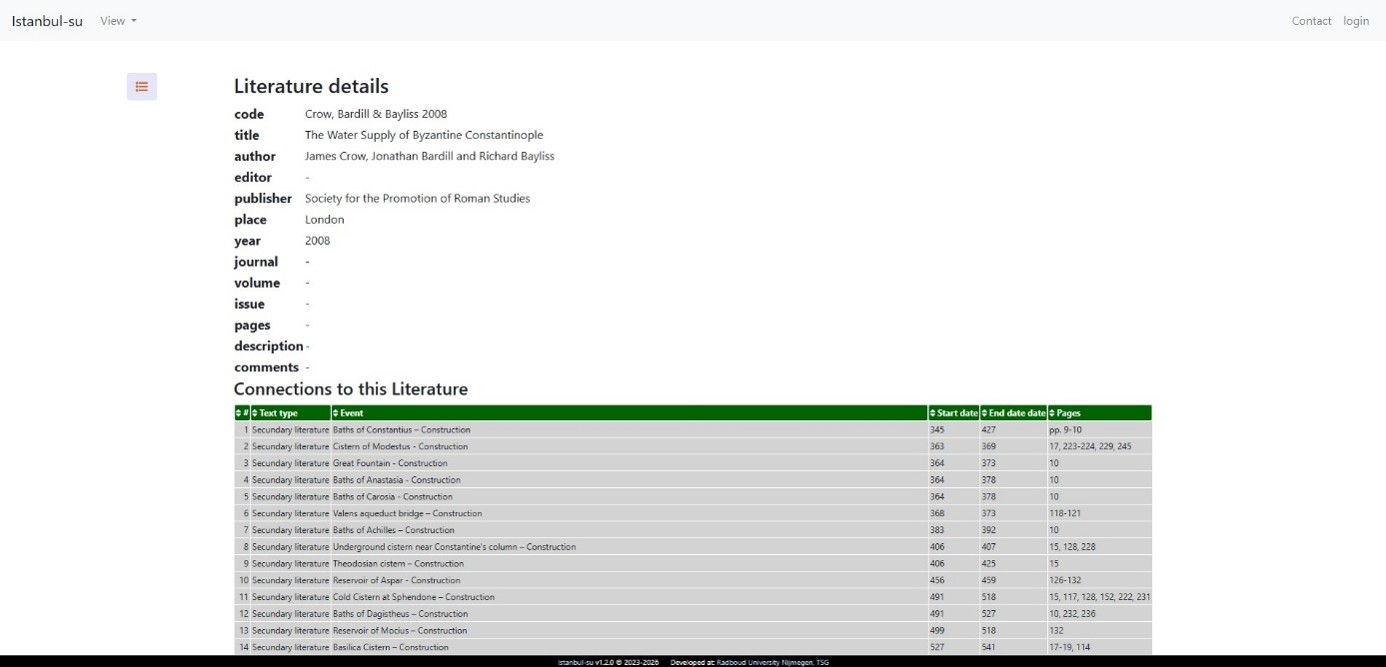
Pressing on the code of the source will lead to the page of the source featuring information about the source and a list of all events connected to the source (see below). Press on the list icon in the left hand corner to go the list of all literature.

Press the purpose of the installation to go the page featuring a list of all other installations sharing that purpose (see below). Press on the list icon in the left hand corner to go the list of all purposes.
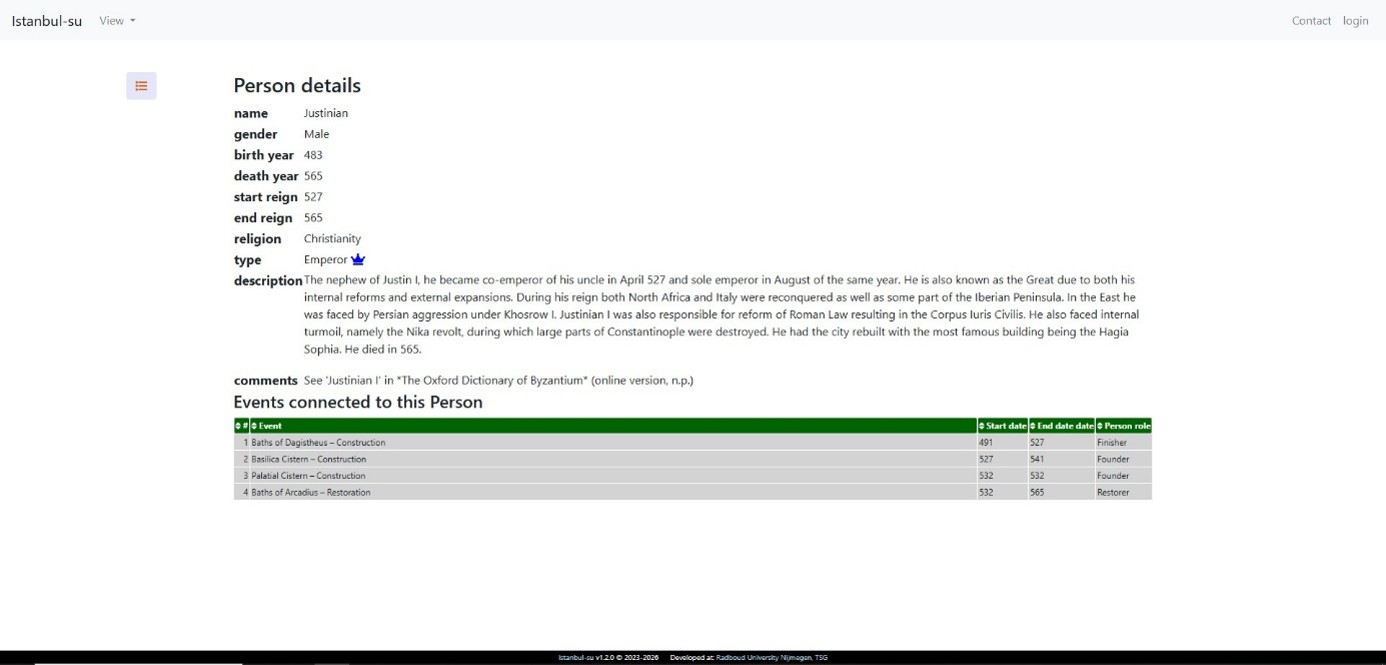

Press any of the names of the persons connected to the installation to go to their individual pages (see below). The page will feature a short description of the person and a list of all installations connected to the person. Press on the list icon in the left hand corner to go the list of all persons.
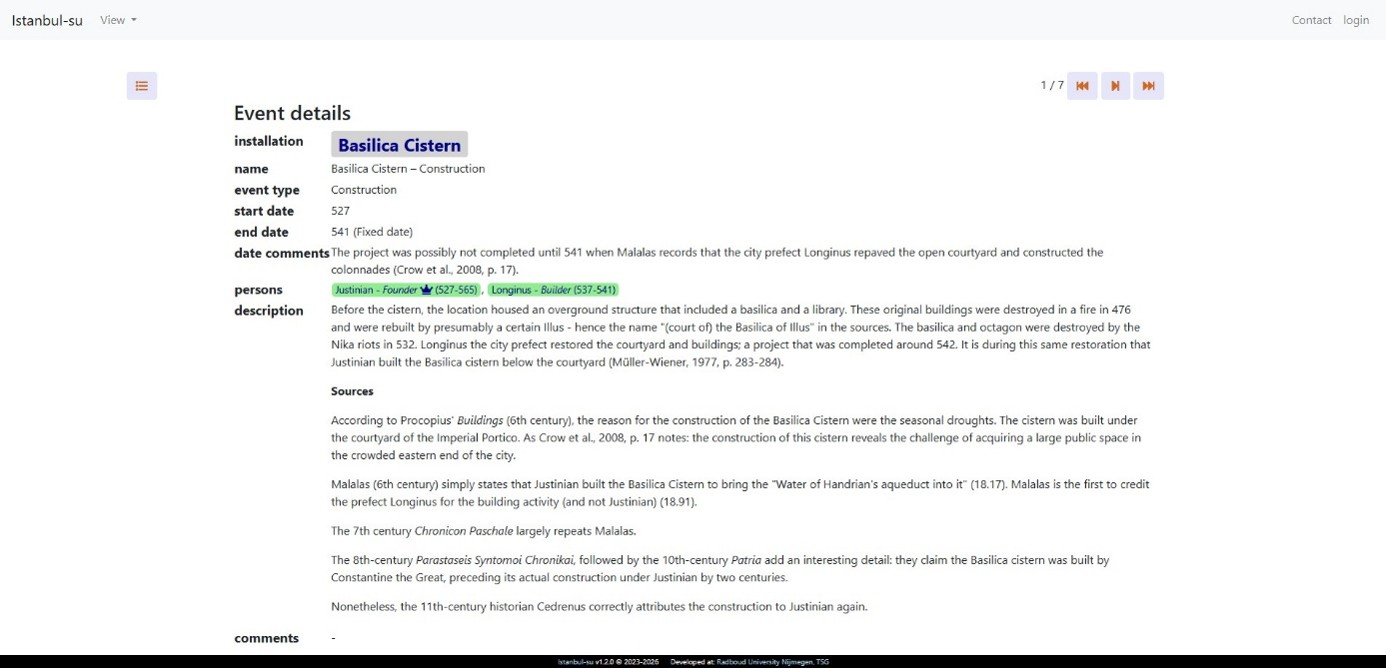
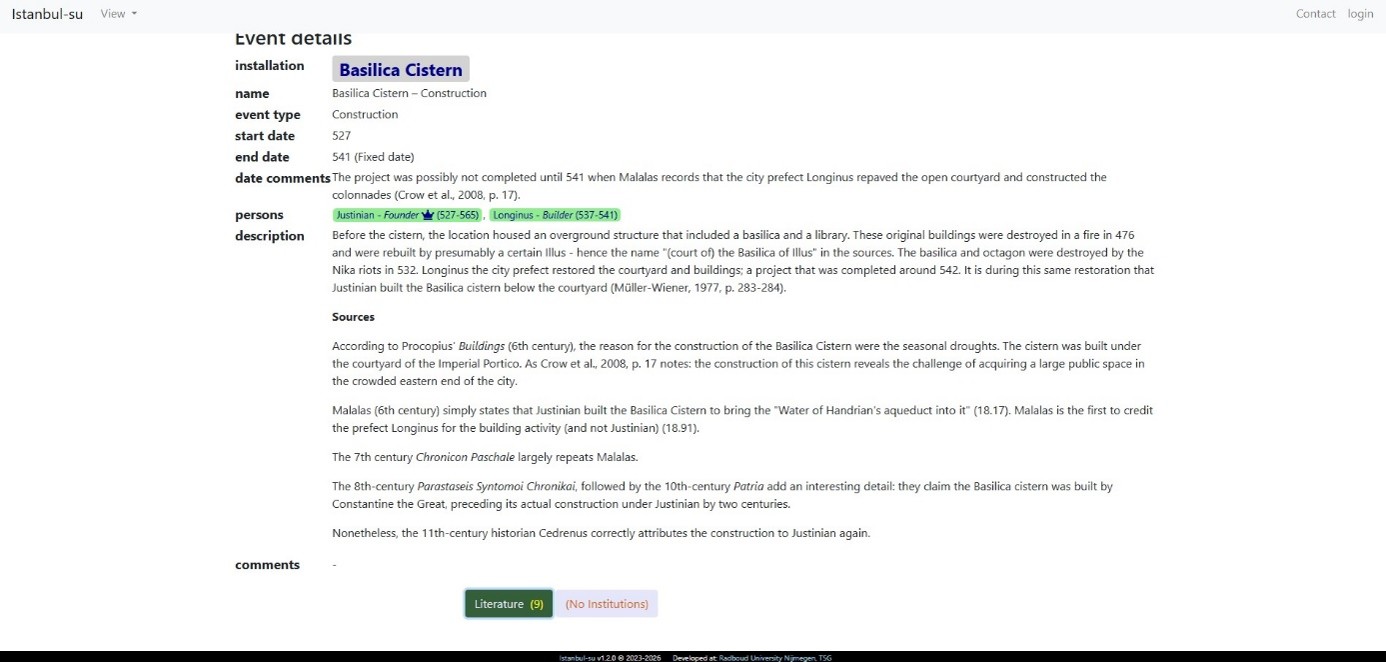
Press any of the individual events connected to the installation to go to their individual pages (see below). The arrow buttons in the right hand corner can be used to flip through the events connected to a single installation. Pressing on the name of the installation will lead to the main page of the installation. By pressing on the names of the persons connected to the event will lead to their individual pages. Press on the list icon in the left hand corner to go the list of all events.
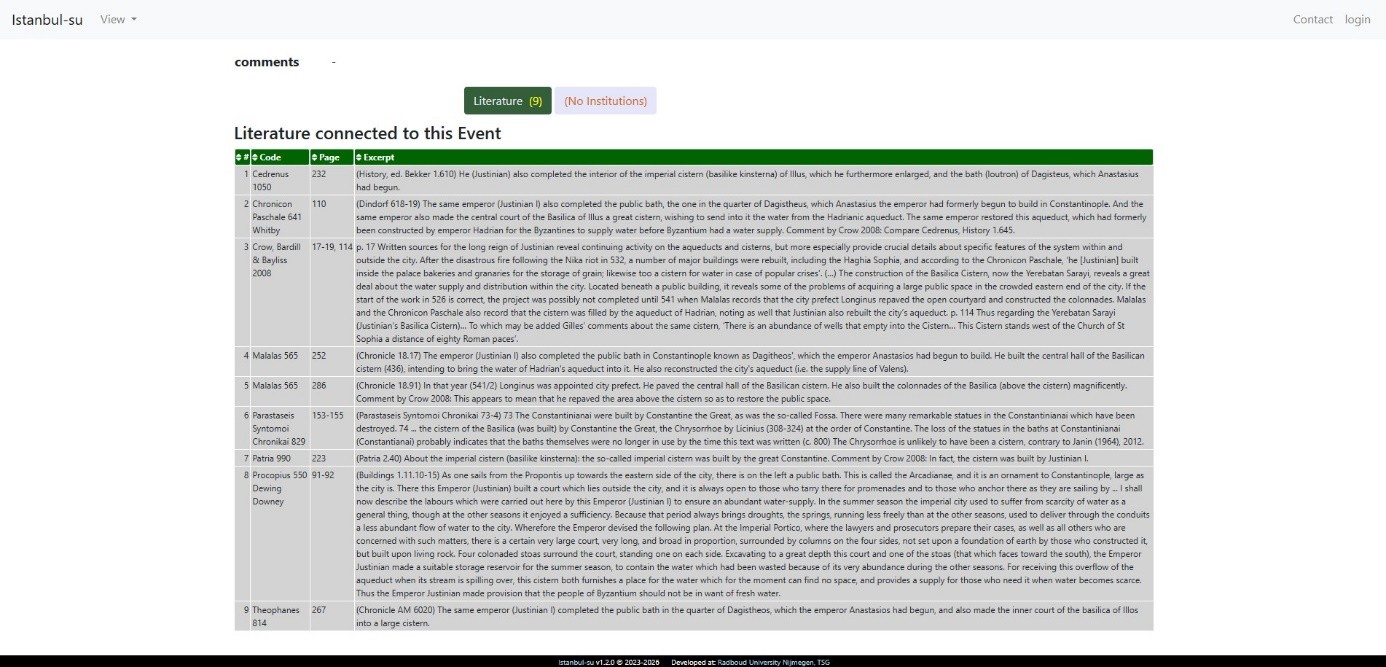
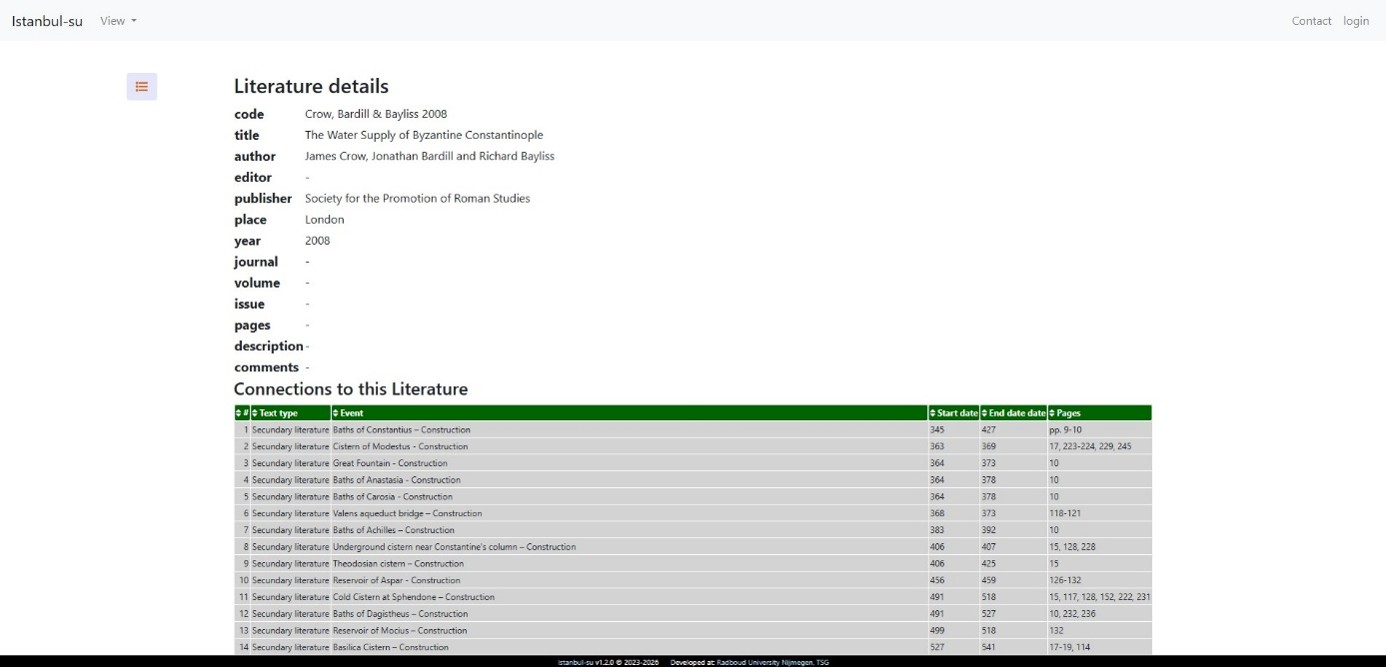
By scrolling down on the event page you find the “literature” button. Pressing this button will make a list of all the literature (primary and secondary) connected to the event. This list features the code of the literature, page number(s), and an excerpt from the sources (see below).
Pressing on the code of the source will lead to the page of the source featuring information about the source and a list of all events connected to the source (see below). Press on the list icon in the left hand corner to go to the list of all literature.
The lists of other information markers can also be searched separate from the list of installations through their corresponding buttons in the view dropdown menu (see below). Each of these buttons will lead to a list of their corresponding marker.